

Watch the tutorial:
World Radio League (WRL) can notify you when a country, US state, call sign, or activity reference you care about is spotted. Set up an alert, choose how you want to receive it, and let WRL watch for matching spots while you focus on operating.
Step 1: Open Notification Settings #
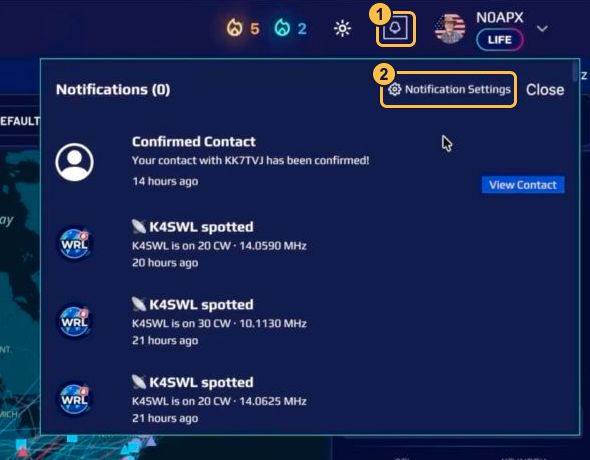
- Click the Notifications bell in the WRL header.
- Select Notification Settings to open the Alerts & Notifications dashboard.
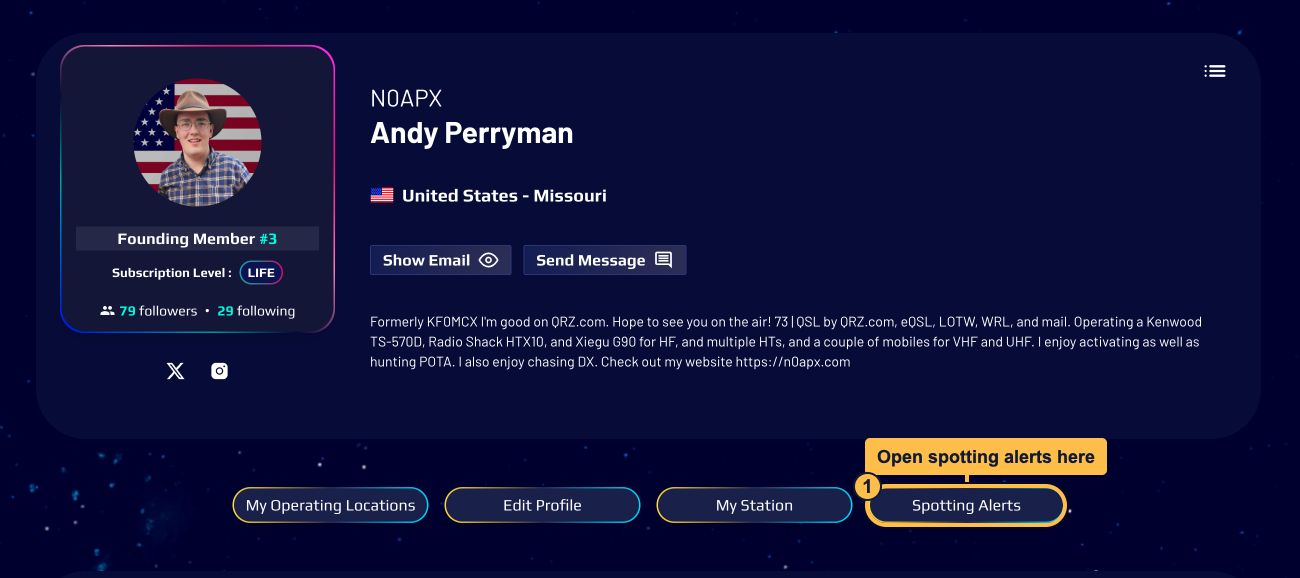
Alternatively: Open your WRL profile and click the Spotting Alerts button beneath your profile details to open the same Alerts & Notifications dashboard.
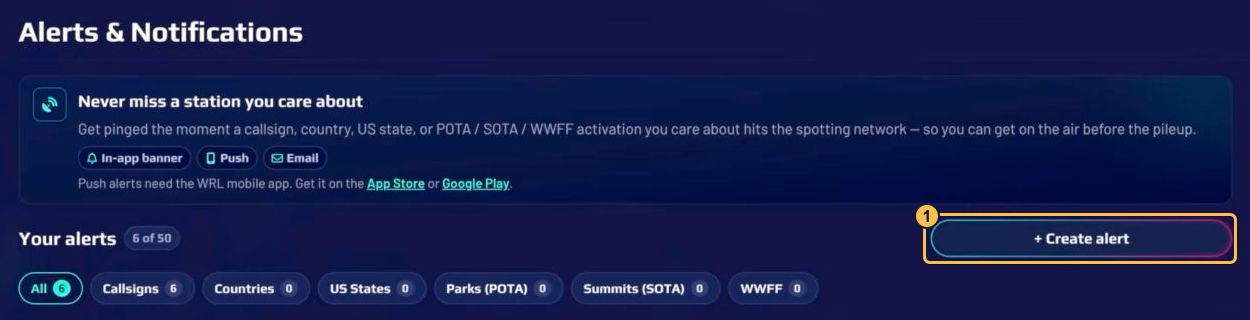
Step 2: Choose What to Track #
- On the dashboard, click Create alert.
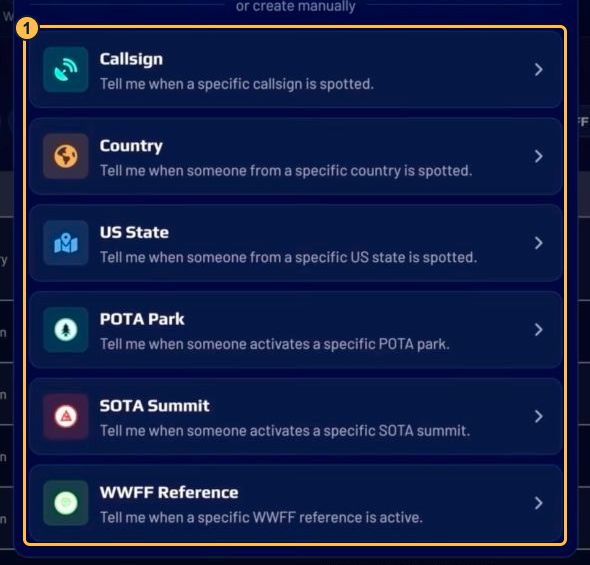
- Choose an alert type, then select or enter the country, state, call sign, or reference you want to track.
- Callsign: Follow a specific operator or station.
- Country: Watch for spots from a selected country.
- US State: Watch for spots from a selected US state.
- POTA Park, SOTA Summit, or WWFF Reference: Follow a specific park, summit, or reference.
Step 3: Choose How Often and Where to Be Notified #
Under Notify me with, select one or more delivery methods:
- In-app: Receive notifications in WRL.
- Push: Receive push alerts through the WRL mobile app.
- Email: Receive email alerts.
Next, choose a repeat interval under How often can this alert repeat? After sending an alert, WRL waits for this interval before the same alert can notify you again. Country alerts allow a minimum interval of 1 hour; callsign alerts allow a minimum of 15 minutes.
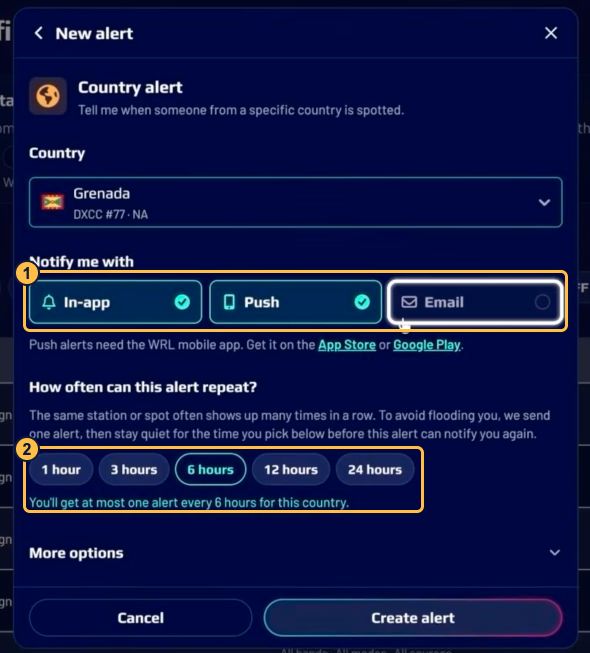
Tip: Push alerts require the WRL mobile app.
Step 4: Set Band and Mode Filters #
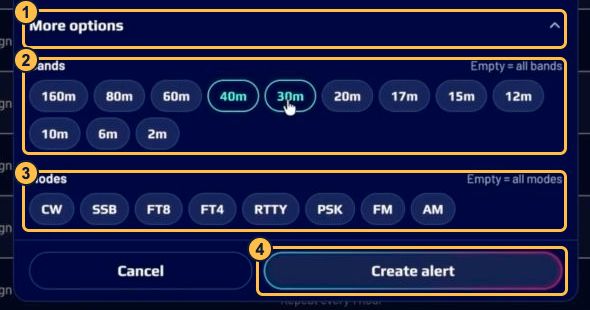
- Expand More options.
- Select the Bands you want to monitor.
- Select the Modes you want, such as CW, SSB, FT8, or FT4.
- Review your settings and click Create alert.
Leave the band selection empty to include all bands. Leave the mode selection empty to include all modes.
Create an Alert with AI #
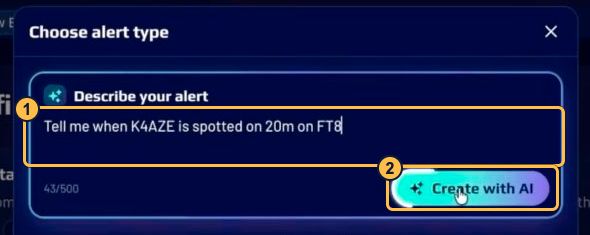
You can also describe the alert you want in plain language:
- Click Create alert on the dashboard.
- In Describe your alert, enter a request such as: Tell me when K4AZE is spotted on 20m on FT8.
- Click Create with AI.
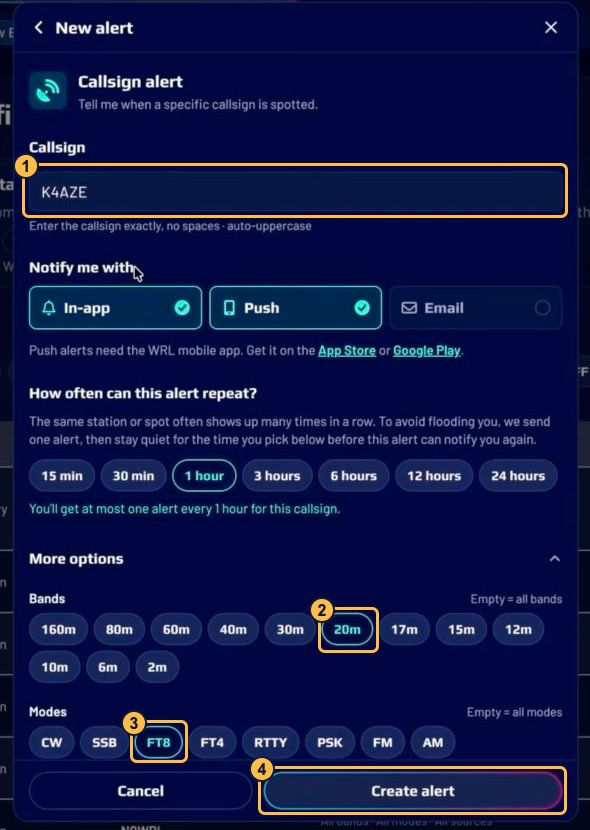
Review the generated call sign or reference, delivery methods, and repeat interval. Expand More options to check the band and mode filters. Make any adjustments, then click Create alert to save it.
Manage Your Alerts #
Return to Notification Settings whenever you want to update an alert.
- Enable or disable: Use the switch in the On column to pause an alert or turn it back on.
- Edit: Click the edit icon on the alert’s row to change its settings.
- Delete: Click the trash icon to remove an alert you no longer need.
