

How to Use WRL for Club Logging for Field Day #
World Radio League makes club logging for ARRL Field Day SUPER easy, with very minimal setup. It supports multi-operator logging, ADIF Export, Field Day specific logging templates with section and class, and everything you need to have an AWESOME Field Day!
With World Radio League, you can operate multi-operator across multiple devices, and it will automatically sync your contacts between ALL DEVICES! 🔁
It does NOT require setting up local networking.
Logging is available via our Desktop app with CAT control (Windows, Mac, & Linux), Website Logging, and our Mobile App on iOS and Android. Your contacts will sync across all devices automatically when connected to internet.
If you’re operating as an individual, use this guide on how to use WRL for field day as an individual operator.
Step 1: Create a club account #
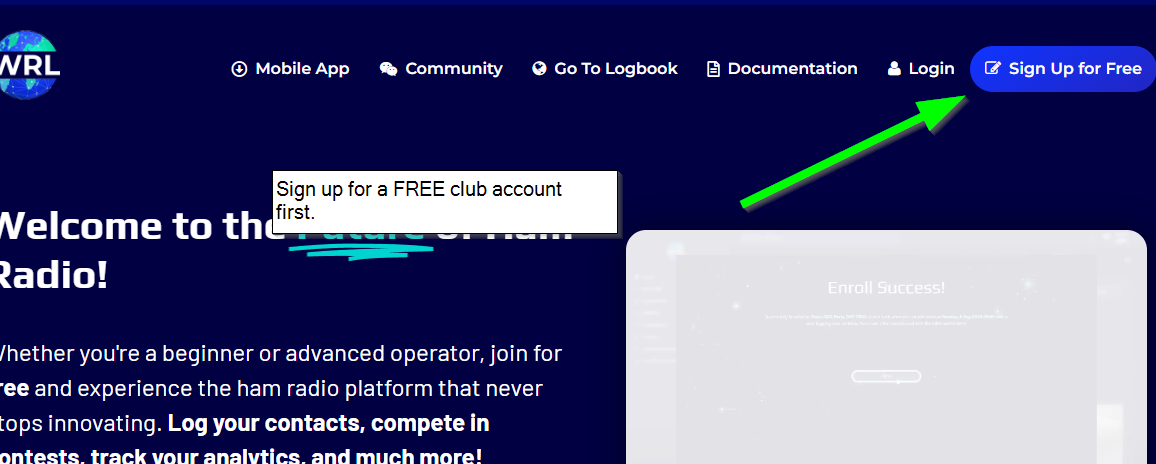
If you don’t already have a club account, create a new account at https://www.worldradioleague.com using the club call sign / email.
Make sure to save the username and password so you can share it with the other operators.
All operators should use the same club account so contacts, duplicate checking, and station settings remain synchronized across all devices.
You can set your club location during the sign up process, which will be your default location for new logbooks. You can always update this or add more operating locations later.
Step 2: Enroll In the ARRL Field Day contest #
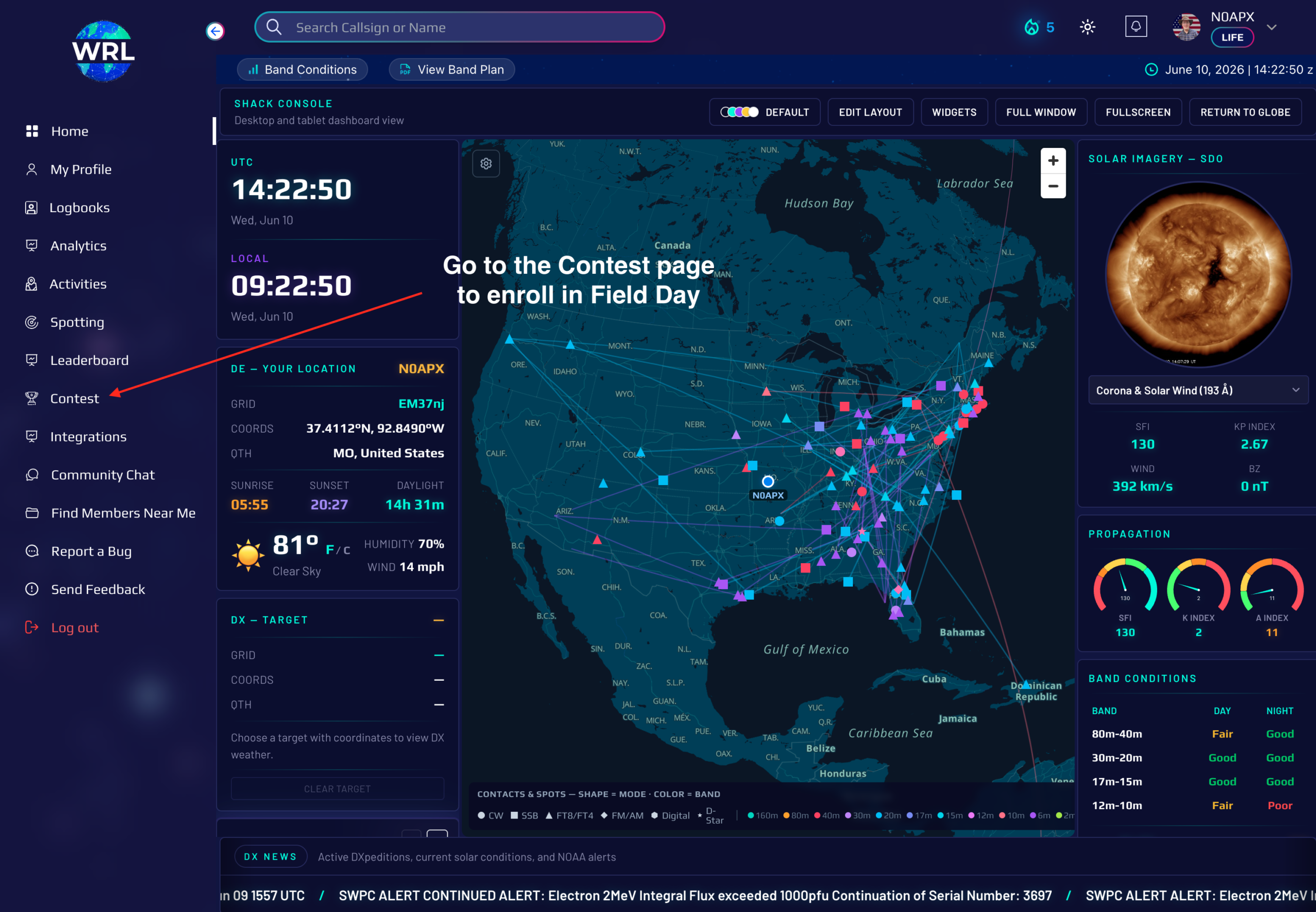
Go to the contest page in WRL and navigate to the Upcoming Contests tab. Find the ARRL Field Day contest, and click Join for Free.
By enrolling, World Radio League will automatically create you a Field Day Logbook! You can access your logbook anytime by going to the contest page, or by going to your logbook page.
The contest page is best because you can view live updates from other operators.
Step 3: Set Up Your Logbook #
Set the Operator and Station Callsign #
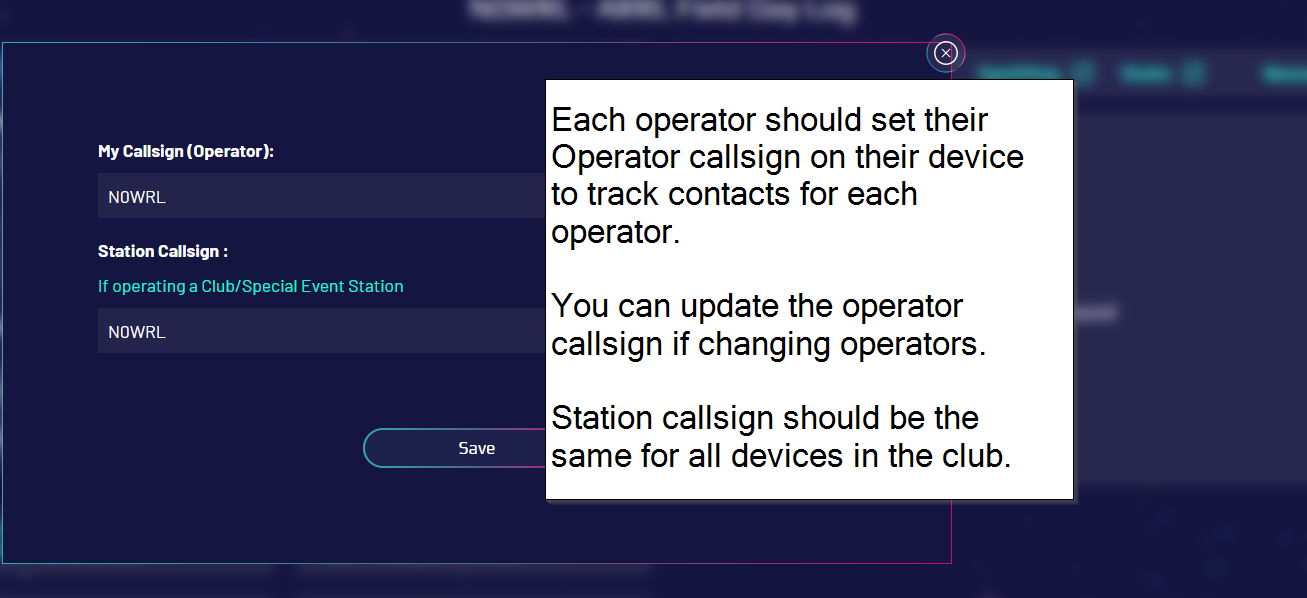
Your logbook will already be created, and now you can set your station call sign and operator call sign in the quick settings.
You can now sign in to www.WorldRadioLeague.com OR the brand new World Radio League desktop app on multiple computers. Each operator should set their Operator Callsign while leaving the Station Callsign set to the club’s Field Day callsign.
You can also have some operators use the mobile app.
The logs will automatically sync across all devices as long as you have internet!
Be careful not to change the station call sign, because it will update it for all users. This is the callsign that you will actually use on the air.
Check Your Operating Location #
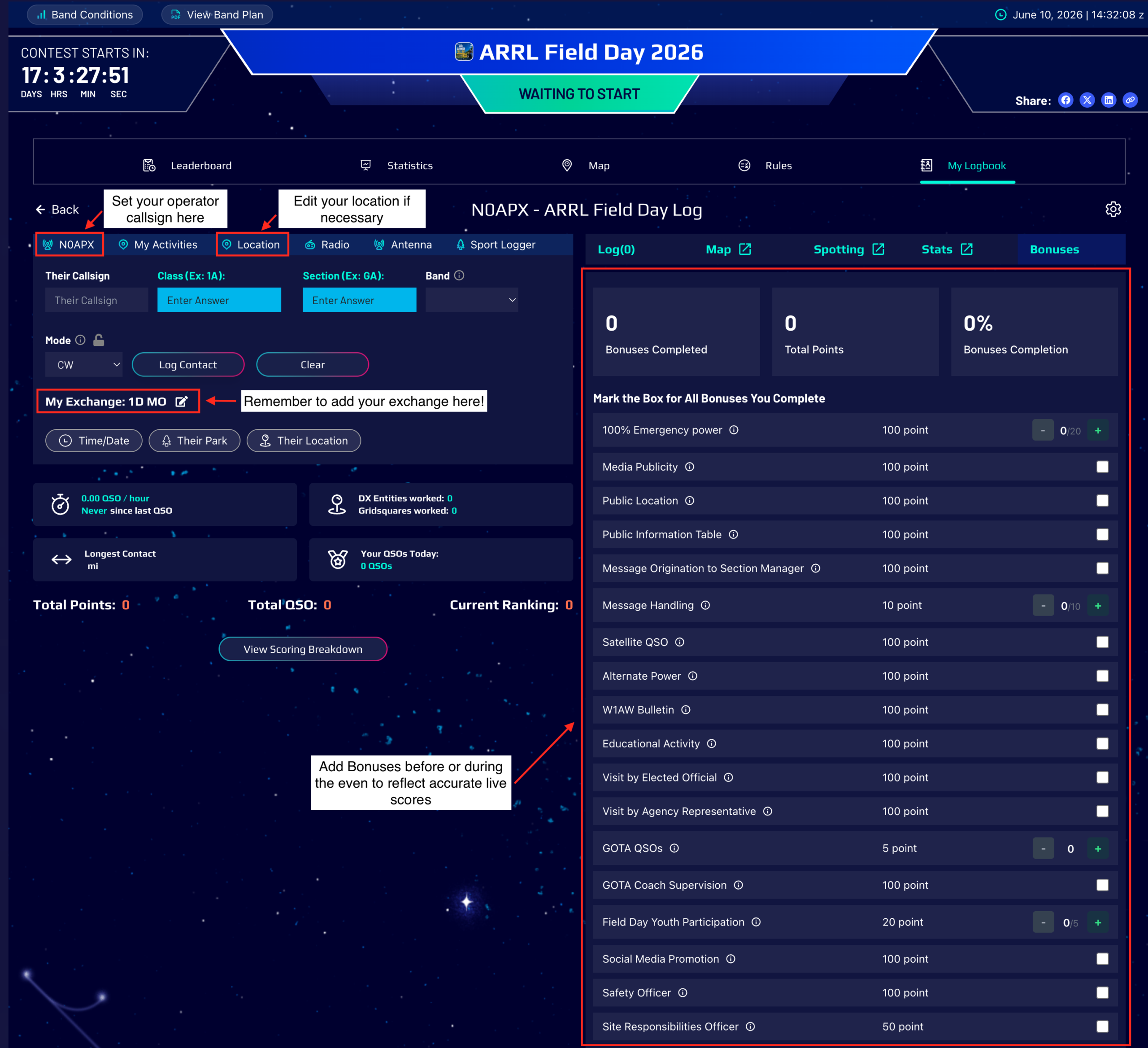
In order for your mapping to work correctly, use the Quick Settings to update your operating location if needed. You can use bulk update later if you need to update this.
Enter Your Contest Exchange #
Entering your contest exchange makes it easy for everyone to keep track of your section and class.
Note: Real-time synchronization and duplicate checking require an internet connection. If internet access is unavailable, operators can use the WRL desktop or mobile apps offline and sync contacts later.
What Are Class and Section? #
ARRL Field Day stations exchange two pieces of information during every contact: class and section.
First Part of the Exchange: Operating Class #
The class is the number of transmitters + a letter representing your operating class.
The number indicates how many transmitters are on the air at the same time. For a simple station with one radio, this is just “1”. But some stations may have multiple radios / transmitters.
1 = 1 transmitter on the air, 2 for two transmitters on the air, etc.
The letter represents your operating class:
A = club/group portable
B = one or two person portable
C = mobile
D = home station using commercial power
E = home station using emergency power
F = Emergency Operations Center
Putting it together, here are examples of the first part of the exchange:
- 1D = One transmitter operating from home on commercial power
- 1E = One transmitter operating from home using emergency power
- 2A = Two transmitters operating at a club or portable Field Day site
- 1B = One transmitter operating portable away from home
Second Part of the Exchange: ARRL Section #
Section identifies your ARRL section, which is based on your geographic location. Your ARRL section is similar to the abbreviation for your state, but some states are large and are broken into multiple sections.
Examples include:
- MO = Missouri
- EMA = Eastern Massachusetts
- STX = South Texas
- WPA = Western Pennsylvania
If you’re unsure of your class or section, you can check the reference of ARRL sections here to find your section.
The Full Exchange Together: Section + Class #
Here is how you will say your full exchange on the air:
- 1A MO (Said on the air “one alpha Missouri” or “one alpha in mike oscar”)
- 2B GA (Said on the air “Two bravo Georgia” or “Two bravo golf alpha”)
Make sure to say your exchange to the other operator, and log their exchange back to you.
Tip: Once you enter your class and section in WRL, they’ll be displayed in your Field Day logbook so you can quickly reference them throughout the event.
Step 4: Start Logging! #
With everything set up, you can start logging!
The logbook interface is made for Field Day and already has the section and class included.
The new WRL Desktop app allows each station to run CAT Control locally on their device while still syncing all contacts and DUPE checking with the online club account!
You can see your log and update it as you go.
WRL automatically checks for duplicate contacts in realtime across every operator and station using the shared club logbook, helping prevent duplicate QSOs from being logged during the event.
Use the contest page to see how you rank compared to other clubs in realtime! You’ll find:
- Real-time contact counts
- Real-time band/mode breakdowns
- Shared club score tracking
- Live club leaderboard position
- Full club score breakdown
- A ranking of each club operator’s performance
Use the map to track and share your contacts!
Use spotting to track stations, and use CAT control in the WRL Desktop app too if you want!
You can even add POTA data into your logbook, so that your club can complete a POTA activation and the Field Day event at the same time.
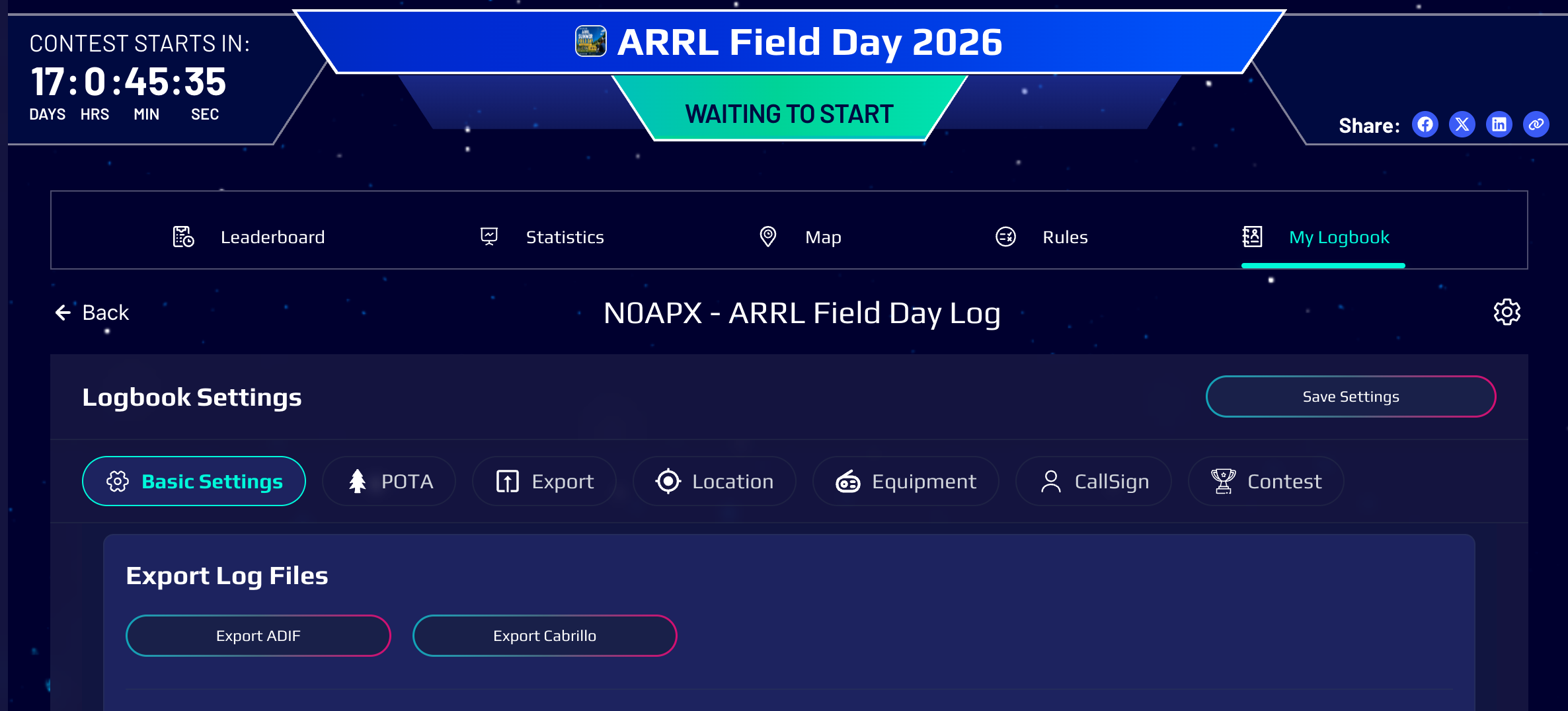
Step 5: Export ADIF and Upload your Field Day entry #
After the event is complete, export your Cabrillo and upload it to the ARRL Field Day website.
#
Field Day Readiness Checklist #
- Create club account
- Enroll in ARRL Field Day
- Verify station callsign
- Verify exchange (class and section)
- Confirm all operators can log in
- Test internet connectivity
- Install WRL Desktop App on operating stations
- Test CAT control if using it
#
FAQ #
Can I do a POTA Activation and Field Day at the same time? #
Yes! Just add the Park details in the Quick settings and you can do POTA and Field Day at the same time.
Do I need an Internet connection to use WRL? #
NO! The World Radio League Desktop App and Mobile App work completely offline, and they will sync your contacts to the cloud when an internet connection is available.
Certain features, such as callsign lookup and syncing contacts across multiple devices, are not available while offline.