

Integration Guide: Connecting WSJT-X | JTDX + Gridtracker with World Radio League #
This guide walks you through setting up WSJT-X or JTDX so that it streams your logged QSO’s directly into Gridtracker and your World Radio League logbook.
You don’t HAVE to use Gridtracker to stream contacts from WSTJ-X into WRL, but it may make operating more fun!
The overall setup is:
WSJT-X –> GridTracker –> World Radio League [UDP]
1. Sign Into World Radio League #
-
Open World Radio League and log into your account.
-
Keep this window open while you configure everything
2. Download the World Radio League Desktop App #
- Go to the integrations page (https://app.worldradioleague.com/integration) and download the latest Desktop App.
- Open the World Radio League Desktop app and sign in to your account
The Desktop App includes a UDP Listener that you will use to integrate with Gridtracker / WSJT-X.
Alternatively, you can use the WRL Integrations app if you just want to use the UDP listener, but you don’t want the full logger.
3. Set Up WSJT-X To Send To GridTracker #
Pre-requisites – your radio should already be setup for WSJT-X operation. If you are new to WSJT-X / FT8, this is not a full guide, it is just related to sending data to Grid Tracker and World Radio League.
- Open the WSJT-X Application (Download Here)
- Configure WSJT-X for your radio as normal -> Select your rig, Serial Port, Baud Rate, PTT Method -> CAT, Mode -> Data/pkt, Set the Input and Output sound, etc.
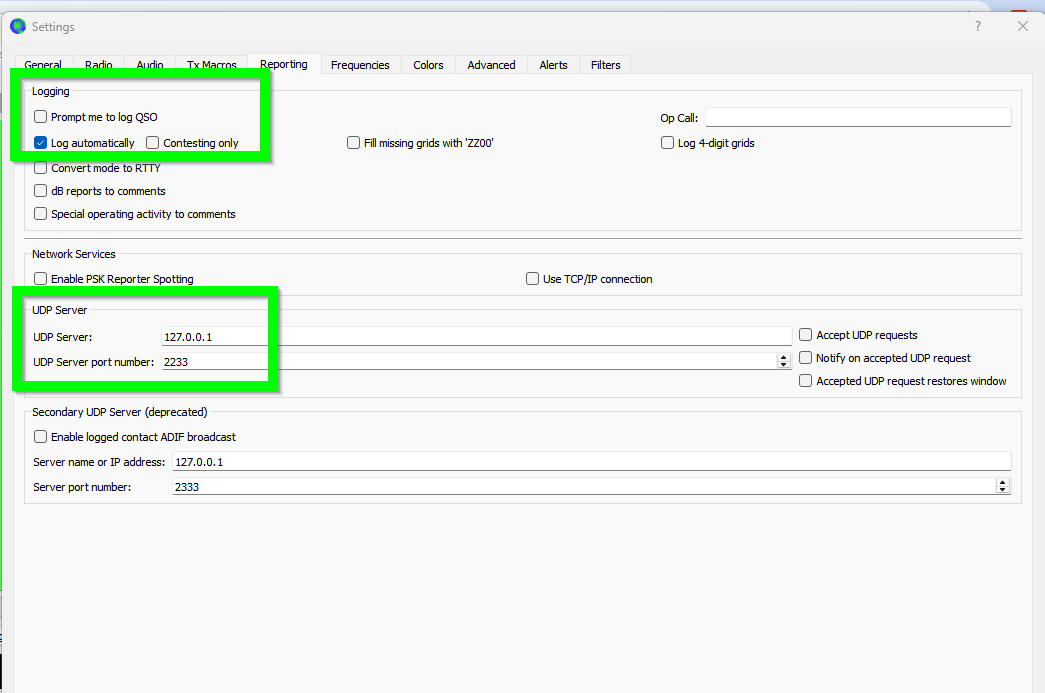
- Go to Settings and Select “Log Automatically” (or ‘Prompt me to log QSO’ if you want to edit the comments each time). This will automatically send your logged QSOs to GridTracker / WRL
- Set the UDP Server to 127.0.0.1 and UDP Server port number to 2233. This is going to send the UDP data to GridTracker.
- Click OK to Save.
4. Configure GridTracker to Send to World Radio League #
Make sure everything is set according to the screenshots below
- Click the Settings Button
- Under the “General” settings tab set the UDP port ‘Receive UDP Messages” to “2333” & “Forward UDP Messages” to “2238”
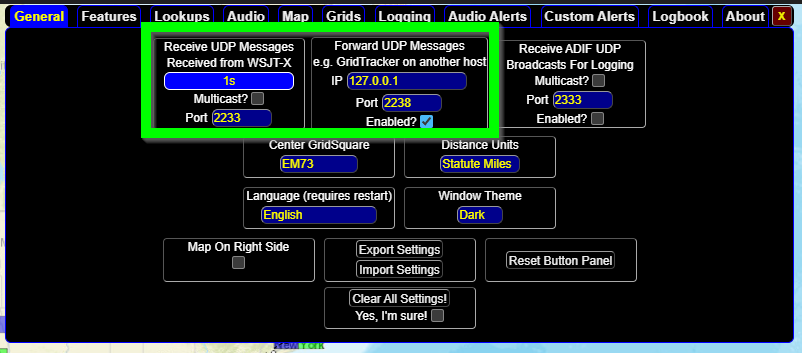
GridTracker is now setup to receive contacts over UDP on port 2233, and send them to WRL on Port 2238.
5. Configure World Radio League to Receive Contacts on Port 2238 #
- Open the World Radio League Desktop App
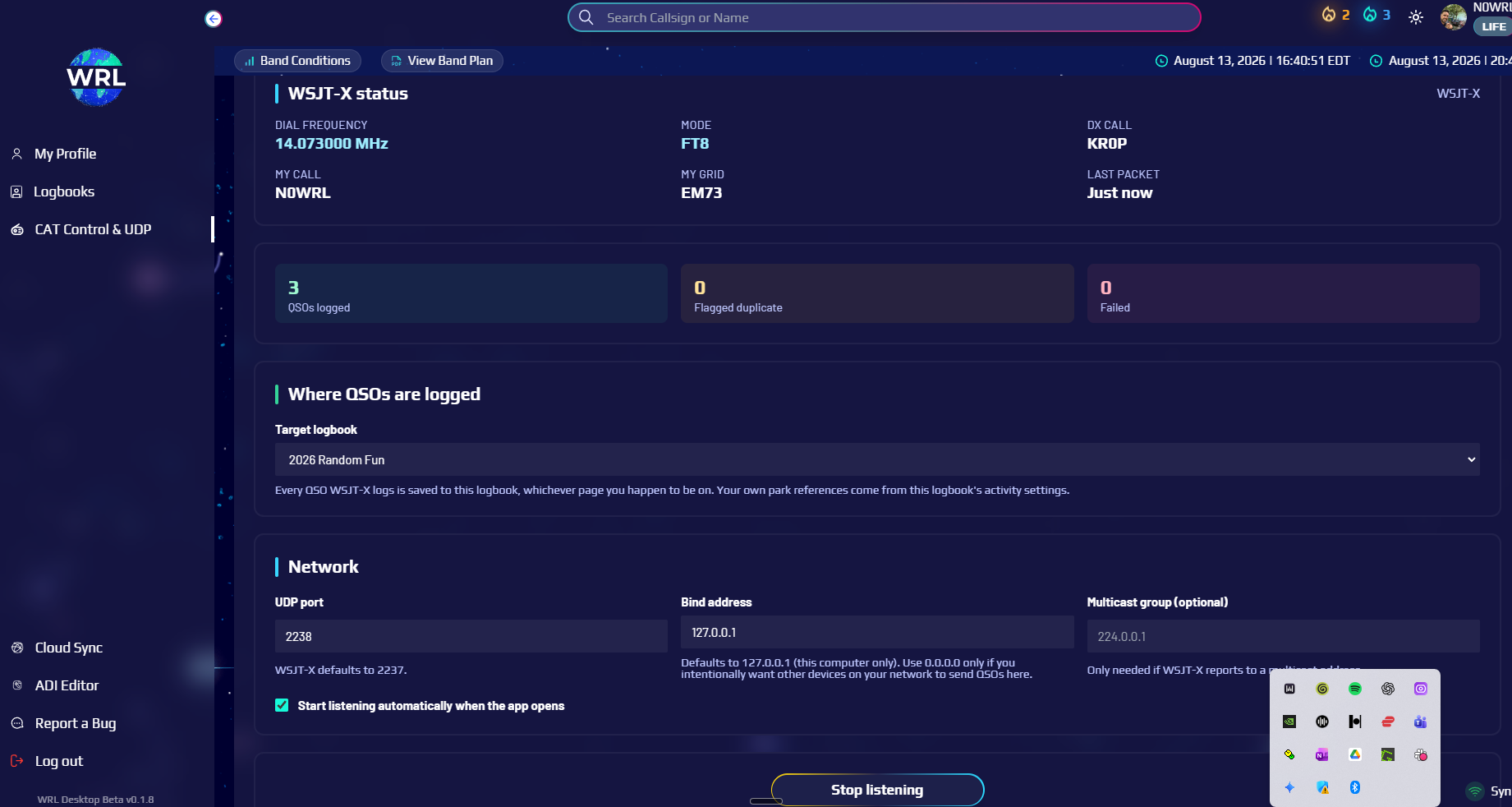
- Go to CAT Control & UDP
- Select WSJT-X
- Select the Logbook where you want the contacts to be sent (you may need to create a logbook first if you have not already
- Change the Port to 2238
- Pro Tip! Check the box Start listening automatically when the app opens!
- Click Start listening!
Important – make sure to set your operating location on the Logbook you are using in World Radio League! WRL uses the logbook location as your location for mapping purposes.
Start Operating! #
If you have now set up everything correctly, every contact logged via WSJT-X should be sent to GridTracker, then forwarded to WRL!
You will see the contacts appear in your World Radio League logbook.